View

 Select
This is a submenu with:
1. Get Previous Selection (S)
You can use this option to repeat a previous selection again. You can also do this with the "S" key on the keyboard. Frequently you want to make the same selection again. With this option you can quickly repeat that last selection.
2. Select by Coordinate Range
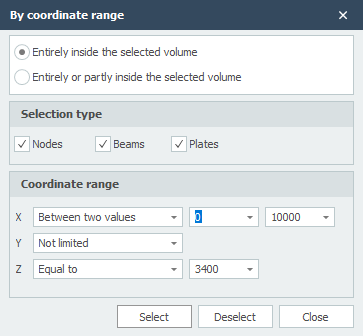
This option allows you to select nodes, beams and/or plates that lie partially or completely within the selected volume. The set values are remembered and so you can easily adjust them for the next selection.
3. Select Beams in XY Plane
4. Select Beams in XZ Plane
5. Select Beams in YZ Plane
6. Select Beams Parallel To
Select all beams parallel to the selected beam(s).
7. Select All Free Nodes
Select all nodes that are not part of the model. You can use this to quickly remove those nodes.
8. Select All
9. Invert Selection
This option lets you reverse the selection. So you can use this to quickly select anything but.
 Visibility
With visibility you can make a selection of beams and/or plates visible.
How does it work? Make a selection (see Make selections) and click on this menu option. Only the selected beams and/or plates will now be drawn. The other beams and/or plates will be drawn transparently.
Helpful tip: You can now also make a sub-selection. How? Rotate the model make another selection and press "Visibility" again.
To undo this click on this menu option without making a selection.
 Find
Find
The Search function allows you to look up a node, beam or profiles quickly and very easily. See Find.
 Dimension Line
You can use this to draw associative dimension lines. You can place the line with 3 clicks. You click on 2 existing nodes and choose the position of the line. There is an automatic snap to previous dimension lines.
 Zoom Extents
With zoom extents the entire construction is shown in full screen with the default camera position.
 Zoom Selection
With zoom selection the selection is displayed full screen. If nothing is selected, the entire construction is shown in full screen with the last camera position.
Line View / Solid
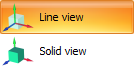
Setting whether: - The wireframe and nodes are drawn (Line view) or that - All profiles are drawn as solid model in true size (Solid model view)
 Distance
By this you can measure distances between 2 nodes. The distances are displayed in 4 directions. In x-, y-, z- and xyz- direction.
 Screenshot
Make a screenshot. The screenshot is copied to the clipboard (so you can immediately paste the image to your MS-Word document), and is also saved as a file in the subfolder "XFEM4U_Images" where the input file is saved, under the name: "name of your input file date time.png". In this way you can always retrace your images.
Snap Size
The amplitude in mm in which is searched to a known point (node/middle of a beam/grid line). The default value is set to 150 mm. Generally this value suffices.