Send to Excel / Retrieve from Excel
Right-click a docked data table to send its contents to a spreadsheet, edit them in Excel, and retrieve the changes back into the model. Use it for fast bulk edits and for sharing data with colleagues.
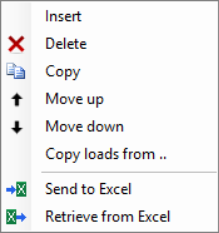
Function
Each docked data table has a right-click menu with two items:
- Send to Excel — writes the current rows of that table to an
.xlsxfile, then opens the file in Excel. - Retrieve from Excel — reads the file back and applies the changes to the model. This item is greyed out until you have sent the same table at least once during the current session.
Supported Tables
The right-click menu appears on the following tables:
- Nodes
- Beams
- Load Cases
- Load Combinations
- Beam Loads
- Node Loads
- Node Displacements
Curious about how easy it is? Click here for a demo
Send to Excel
Choose Send to Excel to write the table to a spreadsheet. A file dialog asks where to save it; the suggested name is based on the project name and the table (for example MyProject_BeamLoads.xlsx). The file is then opened in Excel automatically.
The column headers in the spreadsheet are written in the language the application is set to. Where it is helpful, columns get a dropdown so you do not have to remember valid values.
Retrieve from Excel
Once the file has been edited and saved, choose Retrieve from Excel on the same table. The file is read, validated, and applied to the model. If everything is valid the changes are applied silently with no confirmation dialog.
If any rows have errors (missing required value, unknown number, invalid restraint, etc.), a warning dialog lists the problems, shows a summary of the valid changes (how many rows would be updated, added, or deleted, including any cascade deletions), and asks "Apply the valid changes anyway?". Choose Yes to apply only the rows that passed validation; No aborts the entire retrieve and the model is left unchanged.
Inserting a New Row
Add a new row at the bottom of the table in Excel and leave the Nr column blank. On retrieve, the next available number is assigned automatically. Applies to Nodes, Beams, Load Cases and Load Combinations.
Deleting a Row
Delete the entire row in Excel.
- For Nodes, Beams, Load Cases, Load Combinations: the row is deleted from the model. Beam loads belonging to a deleted beam, and node loads belonging to a deleted node, are removed in cascade. When a node is deleted the chain goes one step further: any beam whose endpoint is that node is also deleted, and any beam load attached to those cascade-deleted beams is removed too. Cascade counts (deleted beams, beam loads, node loads, node displacements) are included in the warning summary when the retrieve also contains validation errors; on a clean retrieve the cascade happens silently.
- For Beam Loads, Node Loads, Node Displacements: the load is removed from the load case it belonged to.
Row Order
- For Beam Loads, Node Loads and Node Displacements, the order of the rows in Excel is honoured: the load list of each load case is rebuilt in the order the rows appear in the spreadsheet.
- For Nodes, Beams, Load Cases and Load Combinations, rows are matched by their
Nrand the on-screen order is preserved. Reordering rows in Excel has no effect on the order in the model. Use the Move Up / Move Down menu items in the application instead.
Dropdowns in the Spreadsheet
Where it is useful, columns are exported with an Excel data-validation dropdown so valid values are easy to pick.
| Table | Columns with dropdowns |
|---|---|
| Beam Loads | Type, Coordinate system, Direction, Case nr, Beam nr |
| Node Loads | Case nr, Node nr |
| Node Displacements | Case nr, Node nr |
| Beams | From node, To node, Profile nr |
| Load Cases | Load type |
| Load Combinations | Active, Combination type |
For very large models (more than about fifty IDs in the list) the dropdown for Case nr, Beam nr, Node nr or Profile nr may not appear in the file because the value list exceeds Excel's limit for inline lists. The cell is still freely editable; you just lose the dropdown affordance.
The dropdown values for Load type come from the same list shown in the in-app Cases grid, in the current language.
File Errors
The following messages can appear during Send or Retrieve.
- "The file is locked" — the spreadsheet is open in Excel. Close the file in Excel and try again.
- "This file was not created by XFEM4U Send to Excel. Retrieve refused to prevent model corruption." — Retrieve only accepts files produced by Send. A hand-made spreadsheet or a file from a different application is rejected.
- "This file contains the 'X' table, but you are trying to retrieve the 'Y' table." — the file holds a different table than the one you are trying to retrieve into. Use Retrieve on the matching table.
These checks are based on a hidden marker that Send writes into every spreadsheet. If you re-export the file from Excel using Save As, the marker is preserved.